
Features
Harbor is the dock, your widgets and your notes in one bar at the bottom of the screen. Here’s everything it does.
A glance at the bottom of the screen.
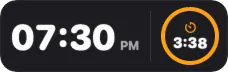
Put the things you check all day right next to your apps. Widgets come in up to four sizes, update on their own, and every one opens a panel with more controls when you click it.

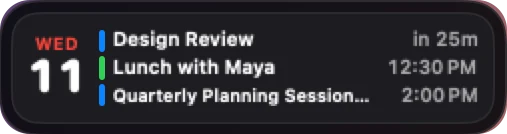
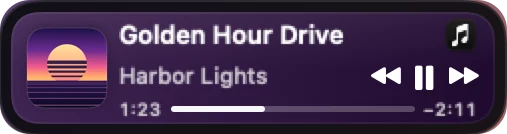
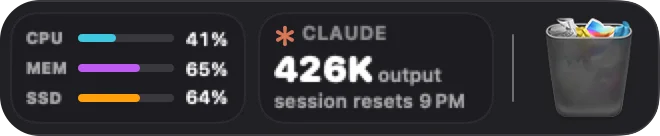

See dozens of them in every size and style on the widget wall
Every widget
Click any widget. Get the whole thing.
Every widget opens a panel right above it with more to see and more to do: the month in Calendar, ten days of weather, a full music player, your timers. Each panel’s gear takes you to that widget’s settings.


Your watchlist, at the bottom of the screen.
Follow shares, indexes and crypto with prices, changes and sparklines, as one symbol with its chart, a short list, or a ticker that scrolls along the bar.
- Type a symbol or a name: AAPL, ^GSPC, BTC-USD or 7203.T, in the widget’s settings or its panel.
- A chart for each: click for the day, five days, a month, six months, the year so far, a year or five years, with open, high, low, volume and the 52-week range.
- Your choice of source: Yahoo Finance by default, or Finnhub with your own free key. Quotes may be delayed.


Everything you copied, one click away.
The Clipboard widget keeps a history of what you copy: text, links, pictures, files and colours. The top item is always what ⌘V pastes.
- Paste an older copy: click it, or drag it to the top, and it’s on the clipboard. Drag to reorder.
- Pin the keepers: pinned items never fall out of the history. Search finds the rest.
- Passwords are never saved: items that apps mark as private, and anything copied in apps you choose to ignore (password managers to start with), are skipped. Pause it any time.
- Stays on your Mac: the history is never sent anywhere. Read more in the privacy policy.


Every look, every layout.
Real Harbor renders with demo data: every widget and size, themes, App Folder styles, pages and more than one display.
Widgets




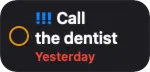
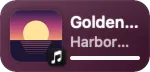


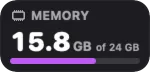
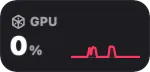
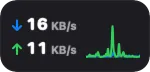


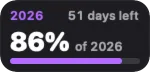
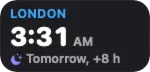



Sizes
Most widgets come in four sizes, from one square to four squares wide. Each shows more as it grows. Right-click a widget to change its size.
Clock


Weather


Calendar


Date


Reminders


Now Playing


System


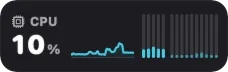
CPU


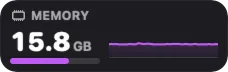
Memory


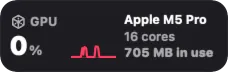
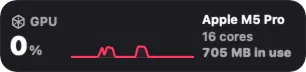
GPU

Network


Storage


Battery


Claude usage


Pomodoro


Timer

Countdown

World clock


Note


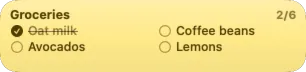
GIF


Pet


Shortcuts


Stocks


Clipboard


Panels
Click any widget and its panel opens right above it, with more to see and more to do.


Themes
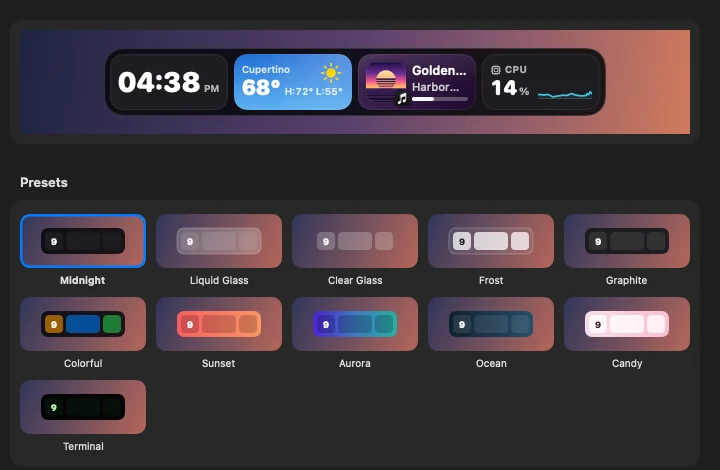
The same bar in all eleven themes. Start from one, then change any colour, material or font in Settings › Appearance.











Every colour, material and font
The bar and the cards each get a style (solid, glass and more), a colour, a border and a shadow. Pick the accent colour, light or dark text, and the fonts for numbers and words. Let some widgets keep their own colours, like the sky in the weather or the album art in Now Playing. Save any look as your own preset.

Customize
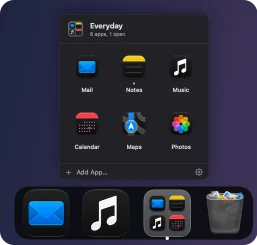
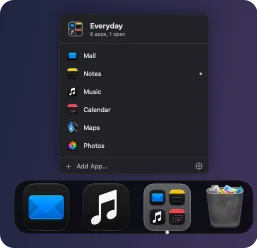
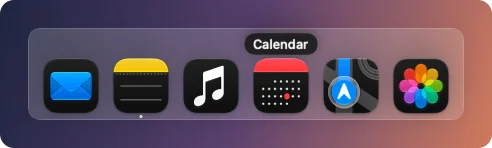
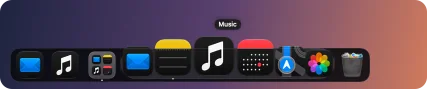
App Folders open four ways

Bar size and icon size







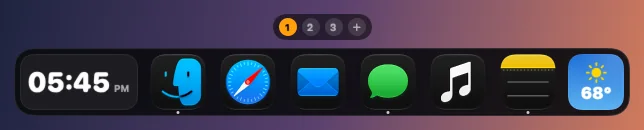
Pages

Widget settings
Every panel has a gear that opens that widget’s own settings: styles, what each size shows, colours, sounds and what a click does. Some changes, like a note’s paper or Pomodoro’s lengths, are right in the panel.
Multiple screens
Use Harbor on every display, each showing its own page of widgets, or on just one.

Display 2 the “Work” page

Display 1 the “Main” page

Display 3 the “Monitor” page

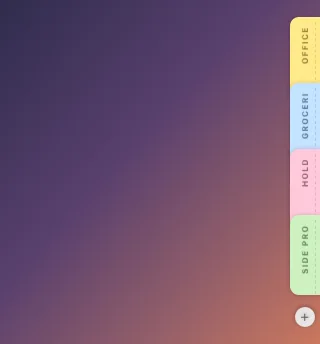
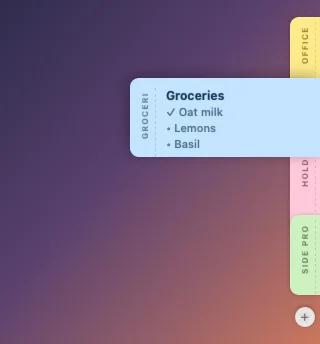
Edge Notes
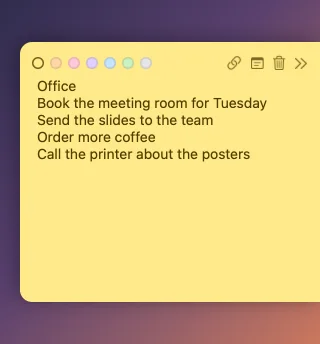
Slim dashes at the screen edge open into labelled tabs when you point at them. Rest on one to peek; click to open it.

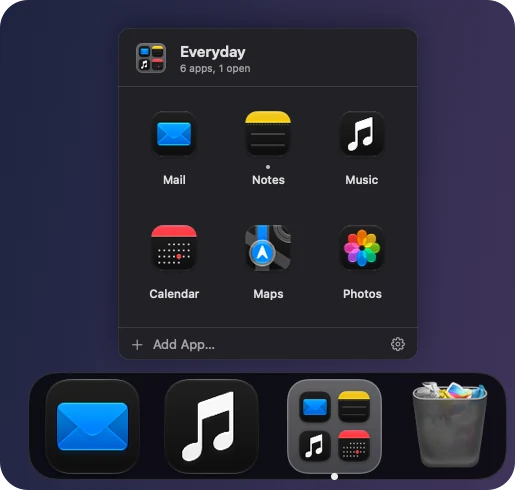
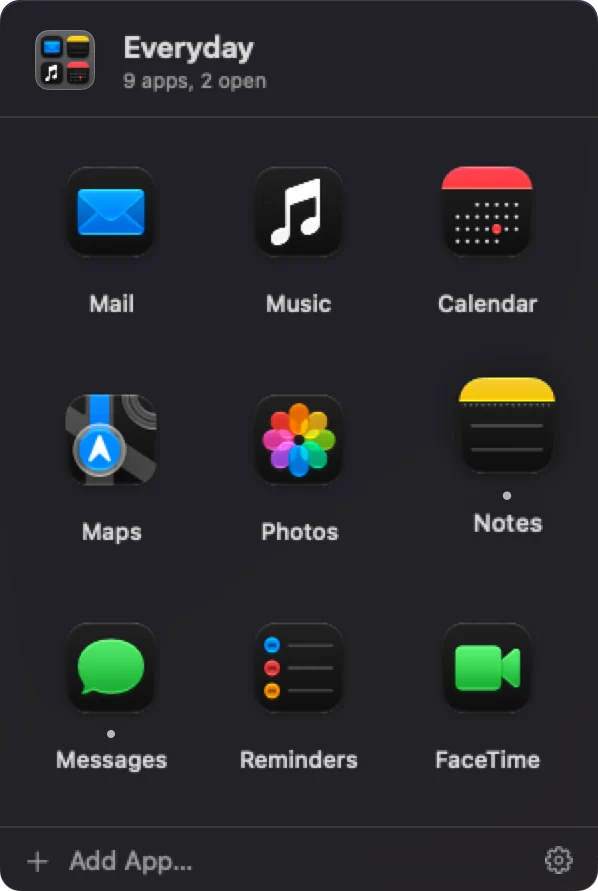
Fewer icons. Every app one click away.
Group apps into a folder that sits on the bar as a tile of its icons. Click it and the apps open right above the dock, without a trip to Finder or Launchpad.
- Four ways to open: a grid, a list with names, a row that looks like a second dock, or straight into the bar.
- Your rules: columns, icon size, names, running dots and badge counts.
- Quick to fill: drop apps from Finder on the tile, or right-click an app and choose Move to Folder.
No edit mode. Just pick it up.
Hold and drag to move anything: a widget, an app, a whole row, an app inside a folder. Right-click anything to change its size, colours and settings, or to remove it.
- Drop from Finder: apps join your apps, folders become stacks, and files become one-click items.
- Add a widget from the gallery, with a live preview of each one.
- Right-click the bar for its theme, size, spaces, auto-hide and Settings.
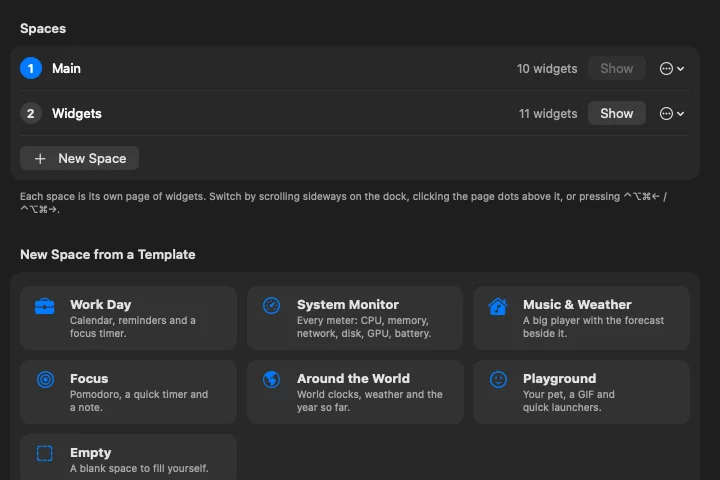
A page for work, a page for everything else.
Make several pages of widgets and flip between them with a sideways two-finger swipe on the dock, the page dots above it, or ⌃⌥⌘ and an arrow key.
- Per screen: every display shows its own page, so your second monitor can be all meters.
- Templates: Work Day, System Monitor, Music & Weather, Focus, Around the World and more.
- Back up your whole setup to one file, or move it to another Mac.
Liquid Glass, Midnight, or completely yours.
Eleven themes to start from, then change every colour, material, font and corner. Save your own looks as presets.
Midnight

Liquid Glass

Clear Glass

Frost

Graphite

Colorful

Sunset

Aurora

Ocean

Candy

Terminal

Sticky notes, tucked off the edge.
Your notes wait at the right edge of the screen as slim coloured dashes. Point at them and they open into labelled tabs; rest on a tab to peek at the note, click to read or write, click away and it slides back.
- Works with Apple Notes: edits you make in the Notes app show up here, and the other way round.
- Always there: they float over full-screen apps, and step aside for full-screen video and games.
- One note, two places: each Edge Note is also a Notes widget on the bar. “+” adds a new one.
The old Dock steps aside, and comes back when you want it.
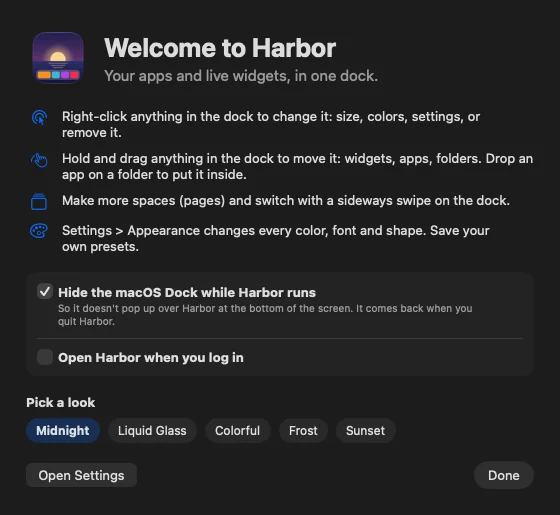
While Harbor runs, it keeps the macOS Dock out of the way so it never pops up over your new bar. Quit Harbor or switch the option off and your own Dock settings are put back exactly as they were.
- Safe by design: if Harbor ever quits unexpectedly, a tiny helper restores your Dock for you.
- Every display: the bar can show on all screens or just one, with auto-hide and full-screen options.
- Nothing to learn: the welcome window sets it all up in one step.
Small things that add up.
Multiple displays
Show the bar on every display or just one; each display keeps its own page of widgets. In full-screen apps it can wait at the bottom edge until you need it.
Auto-hide
Hide the bar until you move the pointer to the bottom of the screen, with your own delays, or keep it always there.
Badges and running dots
App badges, running indicators and a highlight on the app you’re using, styled the way you like.
Private by default
No third-party trackers, and the app has no analytics. Your layout, notes and settings stay on your Mac. Permissions are asked for only when a widget needs them.
Backup and move
Export your whole setup (spaces, widgets, looks and presets) to one file and import it on another Mac.
Keeps itself current
Harbor updates itself; you can turn this off in Settings › Updates. Every 1.x update is free.
Try all of it, free.
14 days with everything on. Then $19.99, once, for up to 3 Macs.